Navigation: From the left navigation bar, select the globe icon to open the SETTINGS menu.
Select CONFIGURATION.
Based on roles, users can make changes in the three backstage Settings tabs:
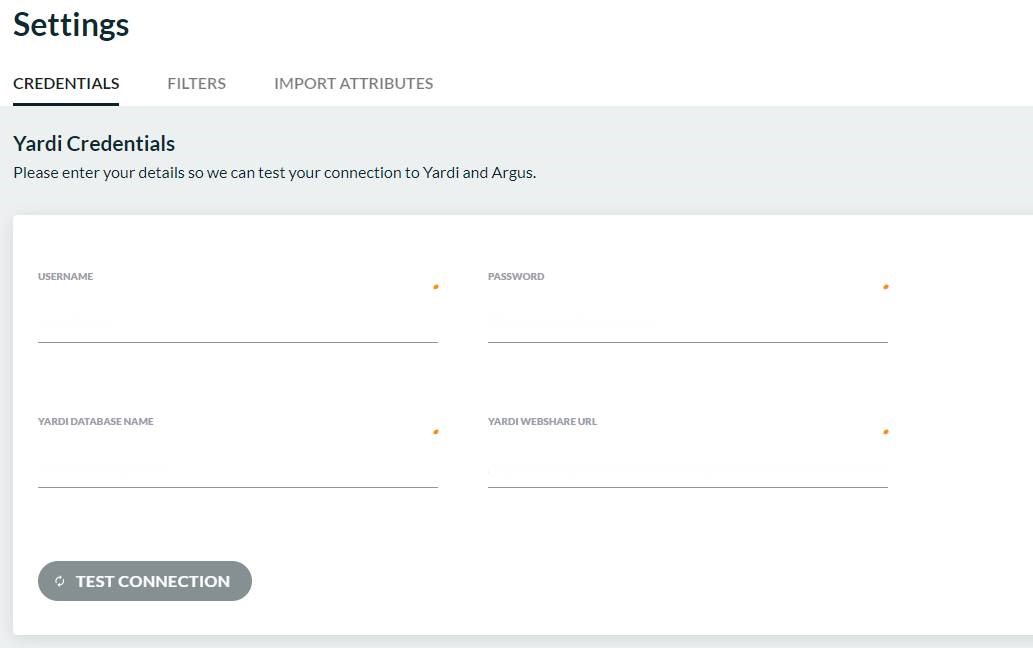
• CREDENTIALS: Analysts enter the Yardi username and password. Admins enter the Yardi Database name and the Yardi WebShare URL.
• FILTERS: Set rules and limit information pulled from the source database. Admins only.
• IMPORT ATTRIBUTES: Display the Yardi attributes which are saved in the connected Yardi database.
When you access ARGUS Connector you will be asked for a Yardi username, password, database name and WebShare URL which give you permission to draw data from the source database.
Complete the fields and click TEST CONNECTION.
Result: If successful, users will be able to begin using ARGUS Connector. If unsuccessful, users will not be able to use the application.
Click CLOSE to return to the landing page.
Important: The database name is provided by your Admin, who will also set up your source database. If your database is not set up then you will see an error message.
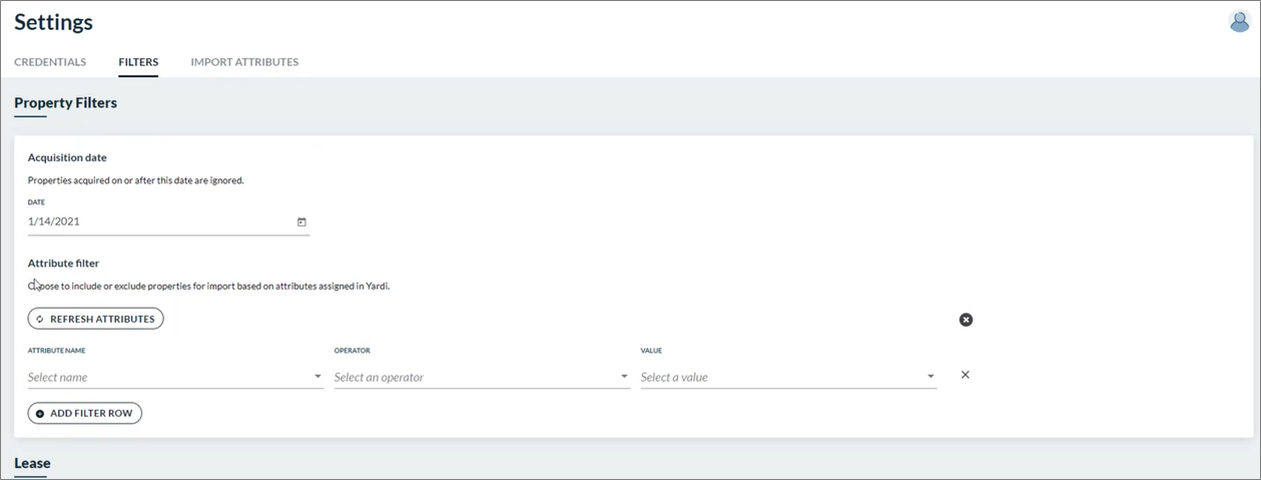
Only Admins and Superusers have permission to access the FILTERS tab. FILTERS allows the Admin to set rules that limit the source database information that an Analyst sees when they run import jobs.
Both the Acquisition date and the Attribute filter are ways to limit the incoming data from the source.
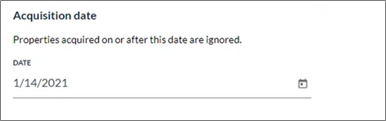
Set a date to exclude properties for import. This information is required.
Note: Any property information in the YARDI source database acquired on or after the entered date will be ignored.
Select Yardi attributes to include or exclude properties to import.
You can create, delete, or edit filters. Filters are saved when you save your information in the backstage. This feature is optional and these fields can remain empty.

Click REFRESH ATTRIBUTES to check the source database for attributes.
Click the drop-down caret for clause selections you can use to create an attribute filter:
• ATTRIBUTE NAME
• OPERATOR
• VALUE
Example: Country + Equals + US.
Click  to
delete all filters.
to
delete all filters.
Click the x at the end of a row to delete that row.
Click ADD FILTER ROW to add a row of entry fields.
Note: You will see an error message if you create conflicting filters.
Click SAVE to save your property filters.
Lease filters allow you to exclude leases by defining lease start and end dates.
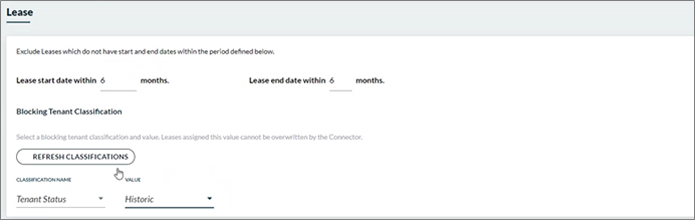
Complete the start date/end date fields to create a filter that excludes leases outside of a defined period:
• Lease start date within [user-defined] months.
• Lease end date within [user-defined] months.
Note: There is a Limit of 99 months.
Blocking Tenant Classification: Restricts what Analysts can do with the source data in your ARGUS Enterprise database. Leases assigned the blocking classification cannot be updated by any mapping performed. An AE tenant classification assigned to leases is a requirement for enabling a Blocking Tenant Classification setting in ARGUS Connector. If no tenant classifications exist in your AE database, then you cannot use Blocking Tenant Classifications. See also Blocked leases.
• You can reset the fields to remove an existing block.
• Your AE Tenant Classifications cannot be overwritten by ARGUS Connector.
Click REFRESH CLASSIFICATIONS to check the source database for classifications.
• CLASSIFICATION NAME
• VALUE
You can reset the fields and unassign a blocking tenant classification.
Click SAVE to save your lease filters.
Yardi attributes can be imported into ARGUS Enterprise as new property classifications. Here Admins can create new classifications in AE and update existing classifications. This feature is optional.
• You can add multiple Yardi attributes to a single AE classification.
• Uncheck rows you do not wish to import.
• Only unique values will be added.
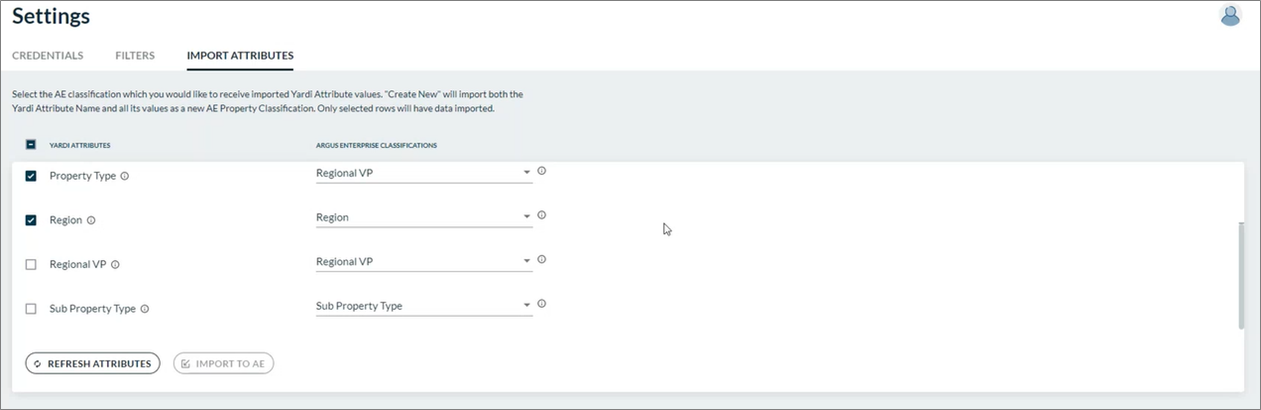
Checkboxes are all selected by default.
• Deselect a checkbox to exclude a row.
• Select a checkbox to include a row.
• Click the checkbox at the top of the column to select/deselect all checkboxes.
Click the information icon next to a Yardi attribute to view its sub-values.
Users can choose to create a new AE Classification from a Yardi Attribute by selecting CREATE NEW from the ARGUS Enterprise drop down menu.
You can add the data from multiple Yardi attributes to a single AE classification. If there are more unique values in Yardi than in AE, then all sub-values of the Yardi attribute will be added to the AE classification.
Example: If you have an AE classification = Country and you have a Yardi attribute = Country with city or state sub-values, then the sub values will be added to the AE classification.
Select matching classifications. Optional matching items are suggested in the pick lists.
1. Click REFRESH ATTRIBUTES to populate rows from your source database.
2. Click the drop-down caret for selections you can use to create an import attribute.
Option: Click the information icon for a read-only popup.
3. Click SAVE to apply your changes and activate the IMPORT TO AE button.
4. Click IMPORT TO AE to save your changes. This button is only available if there are changes or updates since the last import.
Result: An import to AE message displays.
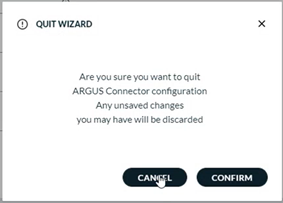
5. Click CANCEL to lose any changes that have been made and return to the ARGUS Connector landing page.
6. Click <BACK to return to the ARGUS Connector landing page.
The SAVE CHANGES popup will display if you make any selections and attempt to navigate away from the Attributes page without saving the changes.
 |
|
| © 2021 Altus Group Limited. All rights reserved. |
https://argus.altusgroup.com |